
Connections and passwords
Agents never see your password
Grain keeps database passwords away from agents. When an agent needs a new connection, it creates a draft with the details it knows, e.g., the database type and the host, and it gives you a link to a setup page on your own machine. You type the password on that page, and Grain saves it in your system’s credential store, so the password never goes through the chat.
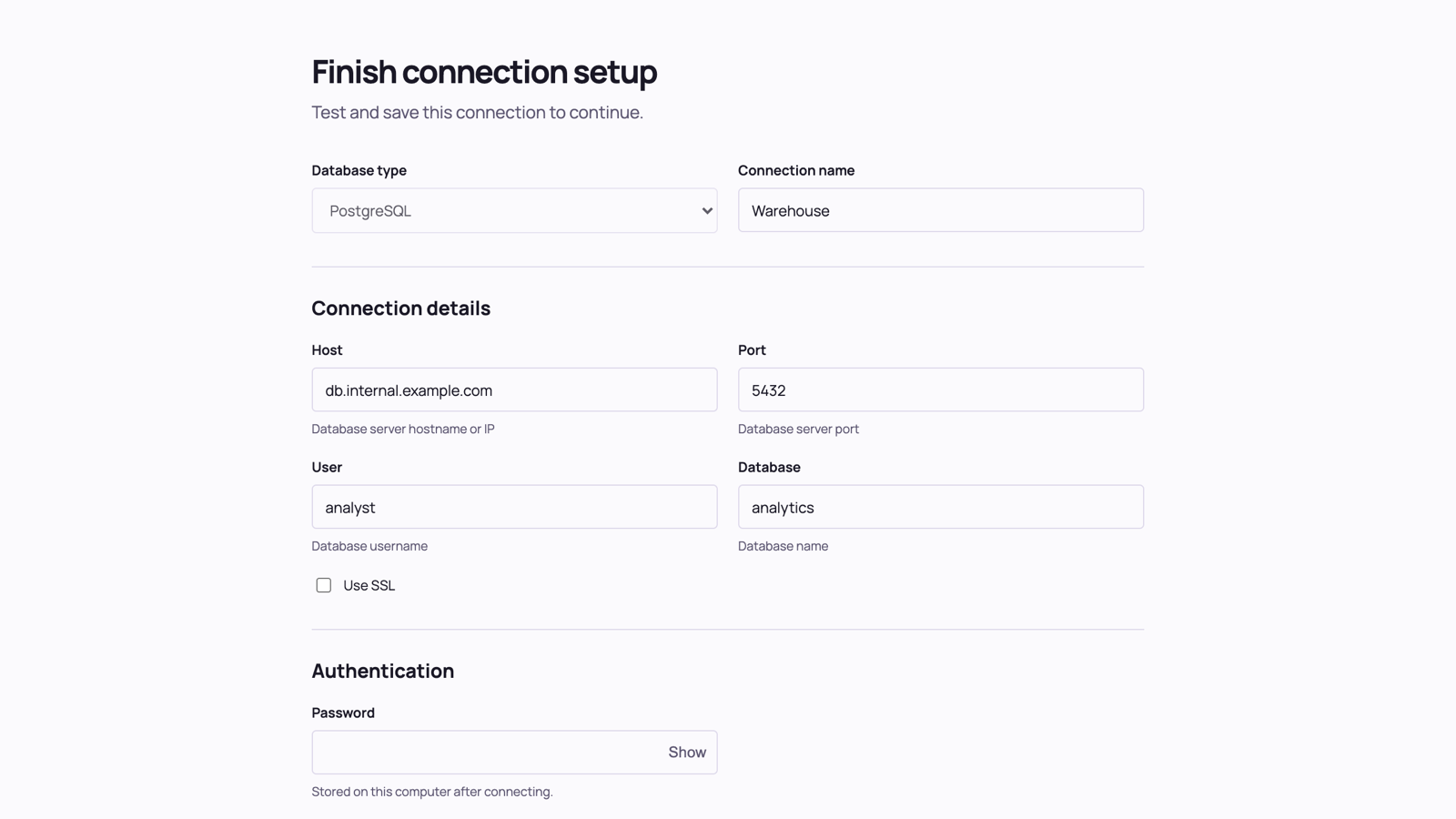
Finish a connection on the setup page
The setup link opens a page served by the Grain service on your machine, at an address that starts with http://127.0.0.1.
- First, check the details the agent filled in, and fill in anything that’s missing.
- Second, enter the password.
- Third, click Connect. Grain tests the connection and saves it.
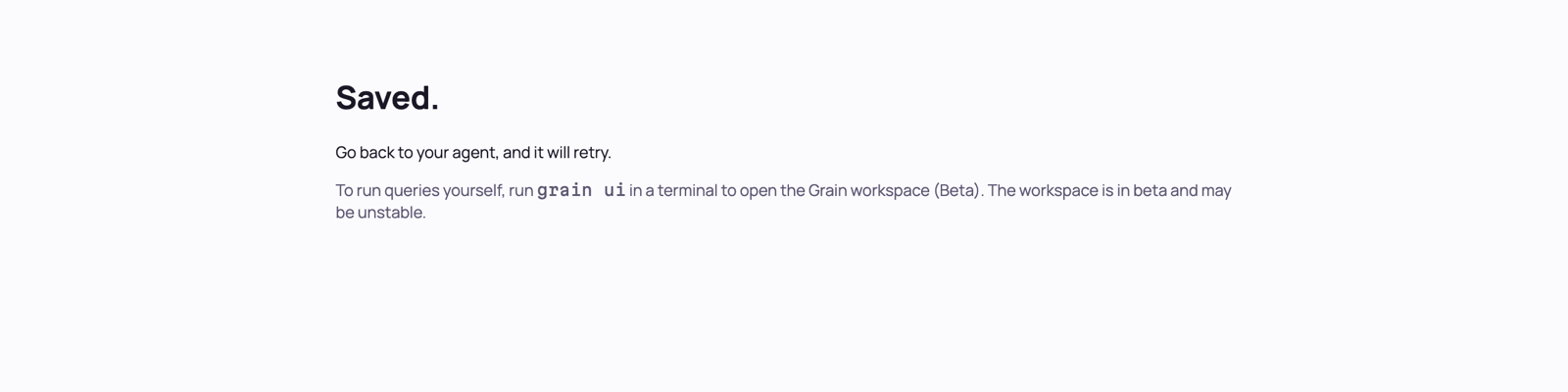
When the save succeeds, the page tells you to go back to your agent, and the agent retries its request. The page also tells you how to open the browser workspace with grain ui. The workspace is in beta and may be unstable.
A setup link expires after 10 minutes by default. An agent can ask for a longer link, up to 60 minutes. If a link has expired, ask your agent for a new one.
When a saved password stops working, e.g., because it was changed, Grain offers the same setup page so you can enter the new one.
Draft connections in VS Code
A connection an agent drafted also appears in the VS Code panel, marked Draft and Needs setup. You can finish it there instead of in the browser. Open the connection, fill in the missing fields, and save it.
Add a connection yourself
You can add a connection without an agent in any of these places:
- In VS Code, open Grain settings and choose Connections.
- In a terminal, run
grain connections add --type postgres --name Warehouse, which opens the same setup page. - In the browser workspace, use the add button on the Connections header.
Connectors lists the database types and the fields each one needs.