
VS Code
The results panel
The Grain extension adds a results panel to VS Code. You run SQL from any .sql file, and the results open in a tab next to your work. Queries that an agent runs through Grain open in the same panel, so you can see the exact SQL the agent ran and the rows it got back.
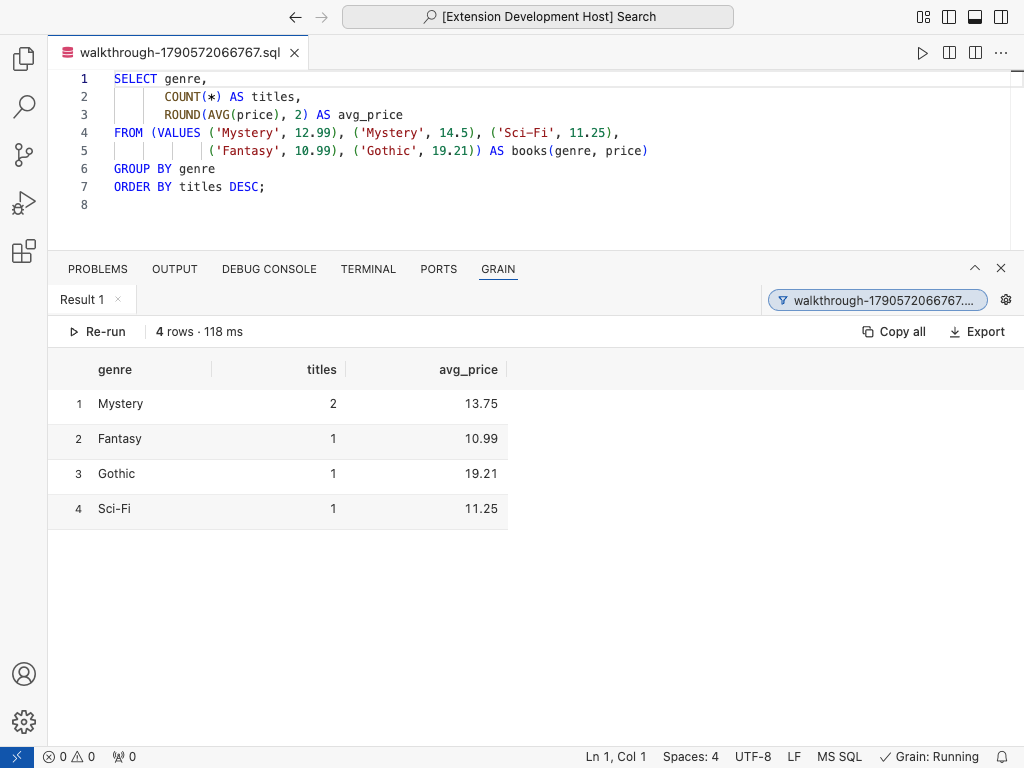
The extension also works in Cursor and Windsurf, because they install VS Code extensions. See Installation.
Set up Grain from VS Code
If the Grain service isn’t installed yet, the panel shows a Set up Grain button. VS Code runs the standard installer and shows its output in a log called Grain: Setup, and it tells you why setup failed if something goes wrong. The button stays until the background service is installed.
Put grain on your PATH
The Add to PATH button in Grain settings, under General, adds the grain command to your terminal. If VS Code can’t change your shell profile, it tells you why and shows the one line to add yourself.
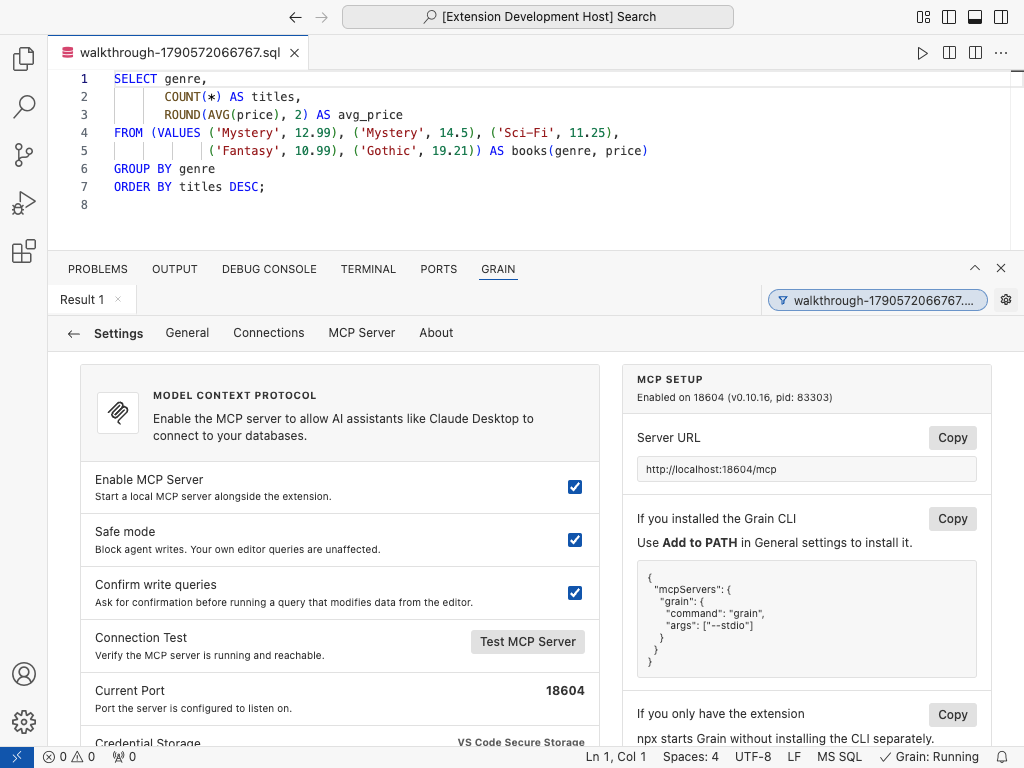
The MCP Server tab
Grain settings include an MCP Server tab, which appears whenever MCP is on. MCP is on by default. The tab shows how to connect your AI agents to Grain, and it offers an npx configuration for machines that only have the extension installed.
Themes
The panel follows your VS Code theme by default. You can switch to Grain Light or Grain Dark with the grain.panelTheme setting, or with the theme control in the panel.
Settings you may want
| Setting | Default | What it does |
|---|---|---|
grain.mcpEnabled |
true |
Lets AI agents use Grain over MCP |
grain.mcpSafeMode |
true |
Limits agent queries to read-only SQL. Your own queries are not affected |
grain.panelTheme |
inherit |
Picks the results panel theme |
grain.telemetry.enabled |
true |
Sends anonymous usage data. See Privacy and telemetry |